Tuesday, October 11, 2016

What is a class?

OK, now that you have mastered the "Edit, Compile, Execute" cycle, it's time to find out what all the stuff is that we surround our simple message "Hello World!" with, to get it displayed.
When we started working with Logo in TG, all we had to do was enter commands and things happened.  But with Java, we had to create a class with a main procedure (called a method in Java).  What's with this???
In this lesson, you will learn
  1. what a class is and its syntax,
  2. what Java's keywords are,
  3. what a method is, and its syntax,
  4. about a special method:
    public static void main(String[] args)

If Java programs are built from things called classes,
what is a class?

A class is a specification (think of it as a blueprint or pattern and a set of instructions) of how to provide some service.  Like a blueprint or a pattern, a Java class has exact specifications.  The specification is the class' contract.  I've talked about contracts before.  First, back when I introduced Adding Commands in Logo and again when we learned about Defining Operators, when we specified a contract for a Grid Toolkit.
Engineers and construction and factory workers use blueprints to build cars, buildings, bridges, virtually anything.  Tailors, seamsters, printers use patterns to make the clothes we wear, books we read.  Chefs follow recipes to put together meals.
Start by thinking of a class as an object.  Imagine a class as a container, like that glass or plastic bottle you drink your favorite beverage from.  Even something this simple has specifications - it has a size.  It can only hold so much.  A beverage company puts something in it.  You take it out.  It's used for storing something.  More commonly, classes can store things and do things.  Think about a modern digital camera as an object.  You take pictures with it - it captures images and stores them.  They also let you do things with the stored images, like cropping and stitching.  Both of these objects, a bottle and a camera, can be represented as classes.
You construct a class by writing what looks a lot like an outline.  There are rules that you must follow to write this outline in the Java language, many of them and they are unambiguous.  In computer programming these rules are called the language's syntax.
Logo had its own syntax.  Its syntax is pretty simple, which is one reason I chose to expose you to it before Java.  Java has a much more complex syntax.  The rest of this lesson will cover the rules for writing a syntactically correct Java class.
Why is this important?  If you follow these rules, the Java compiler will not spit out a bunch of errors.  Life will be good.  Trust me...

A class Consists of...

Here is a breakdown of the source code representation of a Java class.  A class can be broken down into two things:
  1. The first piece is a class-header which consists of the keyword "class" and the name you give to the class.  Names in programming languages are also known as identifiers.
  2. The second piece is the body.  It consists of a pair of open/close squiggly brackets with stuff in between them.
Here is a template for the source code of a class:
   class <identifier>   
   {
      <member>
      ...
   } 
Figure 21.1
When you write a class, you replace <identifier> with the name you want to give your class.  The body of your class is made up of one or more <member>s (the line with "..." on it means any number of the preceding things).  You can use this example every time you write the source code for a class.
Specifically, the keyword "class" should start in the first column of a line followed by the rest of the header information - an identifier in the simplest case. 
The open-squiggly-bracket delimits the header and initiates the class' body.  Some programmers like to place it at the end of the header line; I like to place it on its own line, all by itself.
A close-squiggly-bracket delimits the class' body.  A common practice is to place a close-squiggly-bracket in column 1 by itself.
The contents of the body of a class consists of a collection of <member>s.  Members consist of variables called fields and things it does, called methods (also known as procedures).
The contents of the body (its <member>s) should be indented at least two columns.  Many programmers indent four columns at a time to make the source code easier to read.  The number of columns you indent is not important, but you need to be consistent with whatever amount you choose.  See indentation conventions in the jargon appendix for a longer explanation of why).
There is another convention that you need to be aware of: class identifiers should start with a capital letter and every new word in it should also be capitalized.
Compare the class template above with the Hello World program in the last lesson.  It has a single <member>, a method declaration.  This method (main) is needed in every application.  It is special, so we'll dedicate an upcoming section to it.  But, first I want to cover Java's vocabulary, its keywords.

Java Keywords

Java keywords are words reserved as core building blocks of the Java language.  You may not use them for names of things you create, like class, field and method identifiers.  The Java compiler recognizes these words and treats them special.  Table 21.1 contains all of Java's keywords.  The special meaning of these keywords will be covered as each is introduced in a lesson.
 abstract 
 const 
 finally 
 int 
 public 
 this 
 boolean 
 continue 
 float 
 interface 
 return 
 throw 
 break 
 default 
 for 
 long 
 short 
 throws 
 byte 
 do 
 goto 
 native 
 static 
 transient 
 case 
 double 
 if 
 new 
 strictfp 
 try 
 catch 
 else 
 implements 
 package 
 super 
 void 
 char 
 extends 
 import 
 private 
 switch 
 volatile 
 class 
 final 
 instanceof 
 protected 
 synchronized 
 while 
Table 21.1

The Special Method:
public static void main(String[ ] args)

When we execute a Java application, we use the "java" command which runs the Java Virtual Machine (JVM) and we specify a class file for it to execute.  But, how does the JVM know where to start executing?
ANSWER: It starts with a special method you identify as the "main" method of your application.  This convention is a tradition Java inherited from the "C" programming language.
The source code for main( ) always looks something like:
   public static void main (String[ ] identifier)   
   {
      <statement>
      ...
   } 
Figure 21.2
I'm going to pass on the full explanation behind why we need "public static" in your declaration of "main" but, trust me, those keywords need to be there.  For now, think of the keywords: public and static as special modifiers needed for the method main to be found and accessible.
The identifier can be anything, but it's pretty much a standard that you use the name "args" (which is an abbreviation of arguments) because this is what has been used everywhere.

Summary

Java programs are composed of classes.  Classes are composed of <member>s.  Members are either fields and methods.  Every program needs to have a special method named main.  If you merge the source code I've given you above, you end up with a template for a minimal Java application.  Figure 21.3 shows the template.
   class <identifier>
   {
      public static void main(String[ ] identifier)   
      {
         <statement>
         ...
      }
   } 
Figure 21.3
with the first identifier is the class' name and the second identifier is args.
Memorize this!!!
*NOTE* Remember - it is a defacto standard that all class names start with a capital letter, with additional words in it also capitalized.  As an example, MyClass is proper but myClass and Myclass are not.
*NOTE* Remember - your class identifier must also be the name of the file you enter your source code into.  The file also must have the extension of ".java"

Heirarchical Structure

    hierarchy n 1: ...organized into orders or ranks each subordinate
    to the one above it ... 4: a graded or ranked series.
         ( Webster's New Collegiate Dictionary )

    A hierarchy (...) is a system of ranking and organizing things or
    people, where each element of the system (except for the top
    element) is subordinate to a single other element.
       ( WikipediA )
   
In this lesson, we are going to extend the power of abstraction by orders of magnitude.  You will learn the importance of the hierarchical organization of procedures  It makes your programs easier to write.  Programs that you write in a clear, hierarchical manner are easier to read, modify, and extend.  Again, so that they do what you want.

      Plans are something like little computer programs that
      program the mind to perform certain cognitive tasks, such
      as long division, brushing your teeth,... simple plans can
      be embedded in more complex plans to produce a hierarchical
      control system. For example, the plan of making pancakes
      includes the plan of preparing the batter, which includes
      the plan of measuring out a precise quantity of milk,
      which requires getting a measuring cup from the drawer,
      placing the cup on a surface. getting the milk from the
      refrigerator, puting it into the cup until it reaches a
      certain mark, and so on.
    
  (Cognitive Psychology, Wayne Wickelgren, p. 357)
   
Building things in hierarchies is very common in engineering.  One example you may be familiar with is the file systems provided by operating systems.  File systems have a top-level, often referred to as the root of the file system.  Under the root, there are subdirectories like "Program Files" and "Documents and Settings" and under these are more subdirectories.

Hierarchical Structure - Why It's Important

In a hierarchical structure there is a grouping of things into levels.  There is a "top" level and then a series of lower levels under it.  It's all about abstraction.  At each level you describe a concept with enough detail for you to have a good feel for what lies below it.  Here's a snipet from Brian Harvey's course notes, Reading Material for: CS 61A, for his first class.

  The big idea of the course is abstraction: inventing languages
  that let us talk more nearly in a problem's own terms and less
  in terms of the computer's mechanisms or capabilities.  There
  is a hierarchy of abstraction:
   
Application programs
High-level language (Scheme)
Low-level language (C)
Machine language
Architecture (registers, memory, arithmetic unit, etc)
circuit elements (gates)
transistors
solid-state physics
quantum mechanics

  ... all are important but we want to start at the highest level
  to get you thinking right.
   
The main thing I want you to understand from this is that properly defined levels in a hierarchy allow you to work in any one level with little or even no knowledge of any other level.  Each level is an abstraction of some idea, concept, classification.  With abstraction and hierarchy, a programmer does not need to know how any command does what it is documented to do - just that it does it.  Hierarchy lets a programmer build more and more complicated structures, one on top of the other.
Let's write a program in a hierarchical manner, to demonstrate the point.

Drawing a Street of Houses

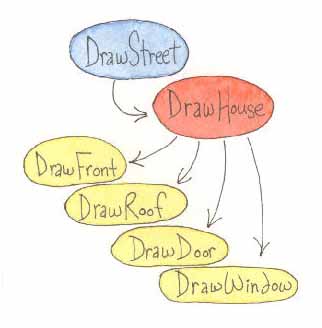
Figure 6.1 shows a static call graph of the DrawStreet program. In it you can see the hierarchical structure.

Hierarchy Figure 6.1
At the highest level in the program's hierarchy, all we have to know about is the procedure: drawHouse.  Given it, the street is drawn as a line of houses.
And, the only thing that someone needs to know in order to modify this program to draw a different set of houses is what the inputs to drawHouse are.  There is no need to know even a single primitive procedure!  This is very powerful and is at the heart of all computer programming.
At the end of the Adding New Commands lesson, where you learned how to define new procedures, you were asked to rewrite your drawHouse program.  You were to define new procedures named:
  • drawFront,
  • drawRoof,
  • drawDoor, and
  • drawWindow.
You then used them in a program which drew the house.  What we will do now is make most of this program a procedure.  Here is my version of a new procedure - drawHouse.
   ; draw a house 100 turtle steps wide and a little less than
   ; 200 turtle steps tall.  the lower left corner of the house   
   ; is where the turtle is located. when complete, the turtle
   ; is left heading north with the pen in the UP position.
   to drawHouse
     drawFront
     forward 100
     drawRoof
     back 100 right 90 forward 20 left 90
     drawDoor
     right 90 forward 40 left 90 penup forward 60 pendown
     drawWindow
     penup back 60 right 90 back 60 left 90
     end 
drawHouse consists of some initialization, invocations of the new procedures and Logo primitives (to position the turtle) . For consistency, all of my drawXxxx procedures assume the turtle is at the lower-left corner of the thing to be drawn.  It is assumed to be pointed north.  For consistency, the turtle is always returned to this location when drawing is complete.  But, just to make sure all goes well, the first thing drawHouse does it some initialization - code that insures the pen is DOWN and that the turtle is heading north.
Now that we have drawHouse, we can use it without any concern about how it draws the door, the roof, anything.  So, to draw a street of houses, we only need to know about drawHouse.  Here's my version of a new procedure which draws a street of houses.

   ; draw a line of houses, the lower left corner of the
   ; first is at the turtle's location with the rest of the   
   ; houses to its east.
   to drawStreet
     repeat 5 [drawHouse right 90 penup forward 115]
     back 575 left 90
     end 
What we now have is a layer-cake of three levels of abstraction, a hierarchy that looks like Figure 6.2.


drawStreet
drawHouse
drawDoor, drawFront, drawRoof, drawWindow
Figure 6.2

The comments included with each new procedure's definition is the contract that the procedure commits to.  Given these contracts, any changes that you make at any level in the hierarchy should not effect any other level.  As an example, in drawHouse we could position the window on the left and the door on the right, swap them; or, we could add a second window on the left and center the door.  These changes would work without breaking anything.  This is a key to writing programs which can change/grow over their lifetime.
So, what's left?  Well, our program needs to do some initialization which positions the turtle where we want the houses.  We need an additional top level; the icing on the cake.

Remember the main... Procedure

There is one more procedure that I've been mentioning since we learned to define our own procedures, one that you should always write.  Its name is main.
Why?   What should it do?
What a procedure named main should do is to first initialize stuff and then invoke the top-level procedure(s) in your program's hierarchy.
So, what do you initialize?  It is a good practice to make sure stuff is just like it is when you first start the TG programming environment.  There is the graphics canvas.  It should be cleared.  Then there is the turtle.  It should be visible in the center of the canvas, facing north, with a black pen, etc...  You need to set the state of stuff in your program such that it is what the rest of your program is expecting.
Of course, much of the time you want the program's initial state to be slightly different than how TG has stuff when it's started.  This is fine too.  For example, when TG starts up the pen is 2 turtle steps wide and you might prefer a thinner or thicker pen.  Things to consider when you are writing your initialization code, setting your program's initial state, are: as:

  • the graphics canvas - clear it or set its background color to some non-white value or fill it with an image using loadpicture
  • make sure the turtle is visible or invisible (visible is nice when you are using setshape or debugging, invisible speeds up graphics)
  • position the turtle where you want it in the graphics canvas
  • which direction should the turtle be facing
  • what state you want for the turtle's pen (its color, width, and whether it is up or down)
Writing programs in TG is highly interactive.  As you try things out, write procedures and invoke them, you modify TG's state.  You move the turtle around; you change its heading; you change the color of its pen; etc...  Testing parts of your program as you write them is great; this helps you write a correct program fast.  But, a well written program has a known starting point and state and this is main's purpose.
The last thing that main should do is to invoke the top-level procedure(s) in your hierarchy.  Here's an example main procedure for use with drawStreet.
   to main
     hideturtle home clean
     setheading 0 setpencolor 0 setpensize 3   
     penup setxy -280 -90 pendown
     drawStreet
     end 
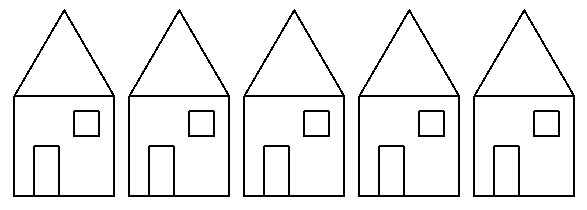
Figure 6.3 shows what you get when you run the completed program.

Figure 6.3
Finally, what's with the name: main?  I've chosen this name because it is also the required starting procedure for programs written in the programming languages: C, C++, and Java.

Practice: Islamic Art


     In art, a motif is a repeated idea, pattern, or theme.
     Many designs in mosques in Islam culture are motifs,
     especially those of flowers.     ( WikipediA )


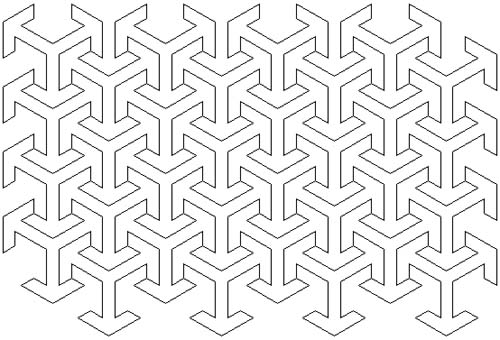
Islamic Arrows Figure 6.4
Checkout the artwork in Figure 6.4.  What looks to be a complex and elaborate piece of work is really simply a repeated motif.  The motif is drawn in a grid consisting of eight rows and eight columns; look closely, at first glance it looks to contain only four columns and rows.
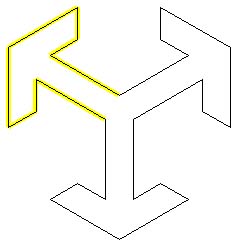
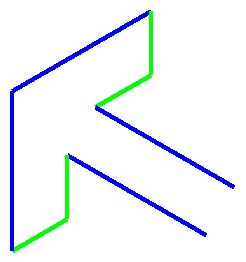
Figure 6.5 shows one blown-up motif with a highlighted arrow.

Outlined Arrow Figure 6.5
This motif, which looks a bit like a 3D cube, is actually a symmetric assembly of three arrows, the points of which are at 120 degree intervals.  In TurtleSpace, the right arrow is pointing at 60 degrees, the center arrow at 180 degrees, and the left arrow at 300 degrees.
Figure 6.6 shows one blown-up arrow.

Blue-Green Arrow Figure 6.6
Figure 6.6 shows an arrow, again doubled in size versus the arrows in the motif.  This arrow can be broken down into two halves, four-line-segments, each the reflection of the other.
So, there is a distinct hierarchy to the program we need to write.  And, this is the reason I picked this piece of art to explore.  Figure 6.7 is the layer cake of this program's hierarchy.


drawGrid
drawColumn or drawRow
drawMotif
drawArrow
drawLeftSide and drawRightSide
Figure 6.7
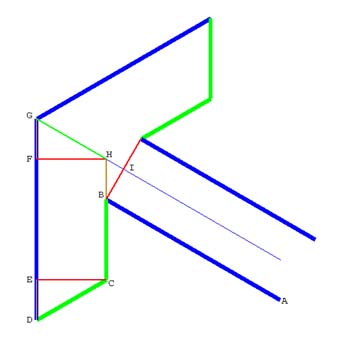
Even though our hierarchy is simple, the mathematics behind this art is not.  The relation of the lengths of the two line segments actually requires knowing the special properties of 30-60-90 degree triangles.  Since this lesson is not a geometry exercise, I am going to give you all you need to know to draw an arrow and then a motif.  Figure 6.8 and Table 6.1 contains all the you need.  I'm also including additional details in Figure 6.8 in case anyone wants to explore, discover the details, the beautiful geometry behind the art.

Arrow Geometry Figure 6.8


Arrow Line Segment Lengths
Which Segment Fig. 6.3 Fig. 6.4 Fig. 6.5
AB and DG (blue) 40 80 160
BC, CD, and GH (green) 16 32 64
BH, DE, and FG (tan) 8 16 32
Arrow Angles (Left Half)
Which Angle Angle in Degrees
ABC 60
BCD 120
CDE 60
Table 6.1

Let's get started; here are drawLeftSide, drawRightSide, and drawArrow.
   to drawLeftSide
     forward 40
     left 120 forward 16
     right 60 forward 16
     right 120 forward 40   
     end

   to drawRightSide
     forward 40
     right 120 forward 16
     right 60 forward 16
     left 120 forward 40
     end

   to drawArrow
     pendown
     drawLeftSide
     right 60
     drawRightSide
     end 
If you type in the definitions of drawLeftSide and drawRightSide and then enter the instructions that make up the body of drawArrow, you will see that the way this works.  First it draws the left side of an arrow, then the turtle rotates a bit, and then the right side of the arrow is drawn.
I have a problem with this; drawLeftSide and drawRightSide are not symmetric.  One expects the turtle to start at the base of the arrow and the other starts drawing at the arrow's tip.  So even though there appears to be a nice hierarchy in the way we think about breaking up our program into pieces, when it comes to writing the program, the result is awkward (at least to me).  So, what I decided to do was to scrap the lowest level of my hierarchy and just start with drawArrow as my lowest level procedure.  I'll add comments inside it to make it clear which instructions draw the left half and which draw the right half.  Here it is:

   ; turtle is expected to be at the base of the left side
   ; of the arrow headed in the direction the arrow points.
   ; the turtle ends up at the base of the right side of the   
   ; arrow, headed in the opposite direction it started in
   to drawArrow
     pendown
     ;draw the left side of the arrow
     forward 40
     left 120 forward 16
     right 60 forward 16
     right 120 forward 40
     ;draw the right side of the arrow
     right 60 forward 40
     right 120 forward 16
     right 60 forward 16
     left 120 forward 40
     end 
OK, your turn.  Define a new command that draws a complete motif, three arrows pointing in the proper directions (pointing at 60, 180, and 300 degrees in TurtleSpace.
Once you get this working, it's time to move on to drawing a complete column or row (see Figure 6.7, the hierarchy).  I have chosen to draw columns.  Once you have drawMotif working, the only thing that's needed to draw a column of motif is iteration, the proper repeat command like we learned in the previous lesson.  I need something along the lines of

   to drawColumn
     ;repeat <number_1> [drawMotif setheading 0 penup forward <number_2>]   
     ;back <number_3>
     end 
where:
  • number_1 is the count of motifs in the column,
  • number_2 is the distance to move up from one motif's starting/finishing point to the next starting point, and
  • number_3 is the total amount moved up (northward) in the process of drawing the column.
Number_2 is the only one that's a bit hard to figure out.  Again, since this is not a geometry lesson, I'll give you good values for it.  It turns out that the distance is 4.5 times the length of the short segment (green segment) of the arrow.  Table 6.2 contains segment lengths pre-computed for you.  As an example, if the short segment in your arrow is 16 turtle steps, the long segment in your arrow must be 40 turtle steps and the distance between motifs is 72 turtle steps.


Segment Lengths
Arrow Green Segment Arrow Blue Segment Distance Between Motifs
8 20 36
16 40 72
32 80 72
Table 6.2

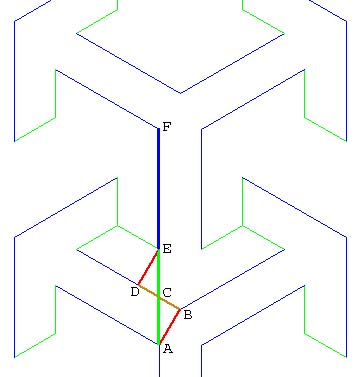
If you are interested in why the distance between the motifs is 4.5 times the short segment length, Figure 6.9 is included for you.  Once again, the special properties of 30-60-90 degree triangles demonstrate how two motifs fit together.  Line segment AF is the distance we are interested in.  As it turns out, it is equal to the length of the long segment of an arrow plus two short segments.


Column Geometry Figure 6.9

Number_1 can be anything we want; it is limited by the height of the display on our computer.  Number_3 is also easy, it's Number_2 multiplied by Number_1.  Here is my drawColumn.

   ; the turtle is expected to be at the base of the desired column   
   ; of motifs. the turtle is returned to its original location
   to drawColumn
     repeat 4 [drawMotif setheading 0 penup forward 72]
     back 288
     end 
And with this working, I'm going to leave it up to you to finish the project. The basic piece missing is iteration needed to draw all of the columns you want.
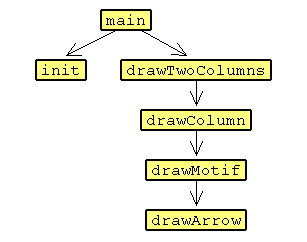
I'll give you a clue; if you look closely at the final drawing (Figure 6.4), you'll see that the distance to move from one column to the next column is the same as moving from one motif to the next motif in a column. There is a lot of flexibility in finishing the program; the static call graph of my solution is shown in Figure 6.10.

Islamic Arrows Call Graph Figure 6.10

Practice:
Another Islamic Art Project


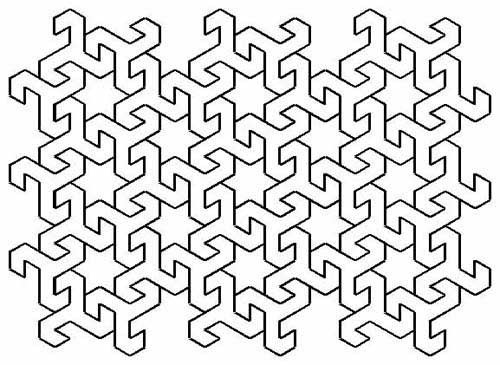
Islamic Stars Figure 6.11

Summary

You have learned how to use abstraction to your benefit when writing more complex programs.  Your programs are built in levels, as in layers of a cake.  Each layer does one thing.  Higher levels use things that are provided by lower levels, very often the one just below it.
Take a bit of time to examine things around you.  Hierarchical development is a major tool in the engineering of everything constructed.  Think back about problems you've solved in the past.  Hierarchical decomposition of the initial situation is often necessary in order to understand the problem, before you can even start thinking about the solution.
Learn to think hierarchically!
You also were exposed to a new word - invoke.  The word is used to refer to asking the Logo interpreter to perform a procedure that you have defined.  Once you defined drawRoof, you then invoked it in the definition of drawHouse.  Once drawHouse was defined, it was invoked in drawStreet, etc...  Historically, the term invoke has had a variety of names; it means the same thing as the Fortran term CALL, a type of statement in the language.  Calling some procedure that you have defined means the same thing as invoking the procedure.

Procedure inputs

Hopefully by now I've convinced you that programming involves a process of solving problems in stages.  Since most computer programs that you will want to write are too complex to simply type-in, you need to take advantage of the concept of procedural abstraction.  Break the problem that you are writing into pieces.  Think about what you need to do; of this, think about what you already know how to do.
Start writing a program in pieces.  Each piece is written as a procedure which you define.  Your procedures are simply lists of instructions.  In techie terms, you are using abstraction to make the source code easier to understand and thus easier to write correctly and easier to enhance.
As you think about the steps or as you are typing in instructions, you will recognize similarities or patterns in the code.  When you discover a pattern with the same instructions being used over and over again, you can reduce the amount of source code you have to type by using iteration - you learned about this (the repeat command) a couple of lessons ago. Using iteration makes your programs smaller, and so, easier to understand.
But, iteration only lets you eliminate duplicated instructions, identical source code, that your want to do multiple times.
In this lesson, you will learn how to define procedures that have inputs, also known as parameters.  These inputs (their names) are used in the body of the procedure in place of specific (actual) values.  When you invoke the procedure, you provide a specific (actual) value to use in place of the input, everywhere its name is in the body of the procedure.
Procedures with inputs allow you to reduce multiple, similar, patterns of instruction sequences to a single instruction.  Confused?  It will become clearer as this lesson progresses...

Similar, But Different, Boxes

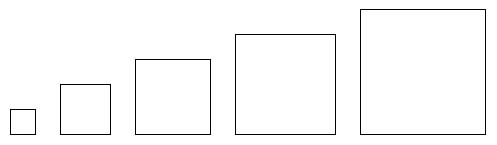
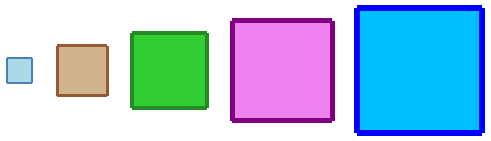
Look at the series of objects in Figure 7.1.  What are the similarities of the objects?  What are the differences?  Take a moment to write your thoughts.

Similar Boxes Figure 7.1
Now, write a program, boxes, which draws the series of growing boxes.  Your program should consist of a procedure for each box.  Then, write a main procedure which contains invocations of these new procedures.  Finally, invoke main to display the row of boxes.
If you are confused, refresh your memory regarding defining procedures, review Definition of a Procedure.  Also rereading the last lesson's Summary may help.  Give this exercise a good effort before reading on.

Similar Procedures

Here are my definitions of the procedures which draw the first couple of boxes and part of the definition of the main procedure.
   ;draw a box 25 turtle steps on a side
   to box25
     repeat 4 [forward 25 right 90]
     end

   ;draw a box 50 turtle steps on a side
   to box50
     repeat 4 [forward 50 right 90]
     end

   to main
     home clean setheading 0 setpencolor 0 setpensize 1   
     penup left 90 forward 250 right 90 pendown
     box25
     penup right 90 forward 70 left 90 pendown
     box50
     ;...
     end 
Since the procedures draw different sized boxes, I've given each of them an appropriate name.  But check them out carefully, the only difference in the instructions that make-up the bodies of these procedures is the number of steps that the turtle is told to move forward.
Think about this scenario.  Logo doesn't have an infinite set of forward commands, e.g., fd25, fd50, fd75, etc...  There are not commands for all possible right instructions, e.g., rt30, rt45, rt90, etc...  There are commands forward, fd, right, and rt which expect an input that specifies the number of steps to move or the number of degrees to rotate.
We obviously need the capability to define procedures that can be used in a similar manner.  We need the ability to define a procedure named box that expects to get a number when it's invoked.  The number will determine the size of the box drawn.
What we need is called an input.

Defining a Procedure With an Input

Here is what we want...
   ;draw a box of a specified size.
   to box :size
     repeat 4 [forward :size right 90]   
     end 
This procedure definition has an input.  Similar to the way you name the procedure itself, you give the input a name, an identifier.  In this example, I've chosen the name size.  The colon (":") preceding the name (pronounced "dots") tells the interpreter that this word is an input and that it should use what's in it. 
What do I mean, in it?  Well, an input is one kind of a thing that's called a variable.  Variables are containers.  Inputs get a value put into them when the procedure they are part of is invoked.
Up until now, all of the programs you've written have been composed of commands with literals as arguments.  Literals are constants like the number "4" in the repeat instruction in the example above.  Every time box is invoked, the <list-of-Instructions> input to the repeat command is performed 4 times. 
But now, the input to the forward command is a variable - the input named size.  The number of steps that the turtle moves forward is equal to the input provided in an invocation of box.  The turtle moves a variable number of steps every time the Logo interpreter performs the box procedure.
Here's the TG applet.  Type in the example definition of box from above and then invoke it a couple of time with different values as arguments, e.g.,
   box 10   
   box 25
   box 100 

alt="Your browser understands the <APPLET> tag but isn't running the applet, for some reason." Your browser is completely ignoring the <APPLET> tag! TG Programming Environment Applet
If this applet is broken and you are using Chrome, click here.
Then, see what the following repeat instructions do.
   repeat 4 [ box 25 box 50 box 75 left 90 ]    
   repeat 24 [ box 60 box 90 right 15 ] 

Multiple Inputs

Procedures are not limited to zero or one inputs.  Procedures are allowed to have more than one input.  The repeat command we have been using has two, a count and an instruction-list.  Another Logo command that takes two inputs and that we will use later in this lesson is setxy. Its two inputs are an X coordinate followed by a Y coordinate.  The turtle moves in a straight line to the X,Y point, without changing its heading.  If the pen is down, it draws a line to the point.
Here is a list of instructions that draws a triangle in the center of the graphics canvas.
   home clean showturtle throttle 1200
   penup setxy 0 100
   pendown setxy 100 -100  setxy -100 -100 setxy 0 100 
The boxes we have been drawing are squares, a special case of a rectangle.  Here is the definition of a new procedure which draws a rectangle.
   ;draw a rectangle of a specified size, at the turtle's
   ;current location, with current pen size and color
   to drawRectangle :width :height
     repeat 2 [forward :height right 90 forward :width right 90]   
     end 
Type it in.  Try it out.  Play with a variety of different inputs.

Logo Animation - Watching Inputs in Action


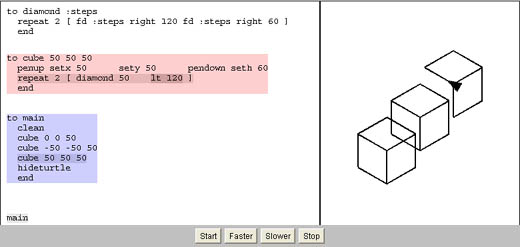
InputsAnimated Figure 7.2
Click here to see an applet that demonstrates the execution of a small program which draws three cubes.  If you are having any trouble visualizing how inputs get their values when a procedure, which has, them gets invoked, go watch it...  Watch how the program is executed, step by step.

Practice: Cartesian Axes

One thing we have been doing since we started to write our programs is figuring out where we should draw things on the graphics canvas.  What can help with this is to draw a pair of X and Y axes.  They give you guidelines for the center of the canvas, the dividing lines between positive and negative X and Y values.  Tick marks along the the axes help approximate the values of point coordinates, where we draw things.
If you need to learn a bit, or refresh your memory, about the Cartesian coordinate system, here is a link to the Math is Fun website which has a nice page describing it.
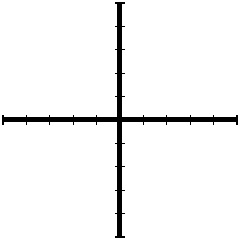
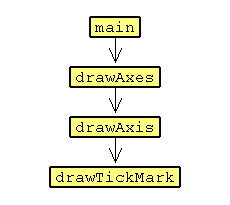
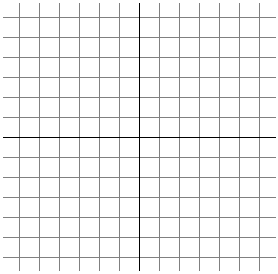
Now, let's generalize the program you have seen twice in the exercises, first in the second lesson and also in lesson 5 (Iteration).  Figure 7.3a shows one example of a set axes our program will draw.  Figure 7.3b shows the call graph for the program I have in mind.

(a)  Cartesian Axes
(b)  DrawAxes Call Graph
Figure 7.3


Let's start with the code for drawTickMark.
   ; draw a tick mark at the turtle's current location
   ; the tick mark is drawn perpendicular to its heading   
   ; input :len is length the tick mark extends outward
   to drawTickMark :len
     setpensize 1  setpencolor 15
     right 90 forward :len back :len
     left 180 forward :len back :len
     right 90
     end 
And the code for drawAxis which invokes drawTickMark.
   ; draw an axis at the turtle's current location
   ; the axis runs along the turtle's current heading
   ; input :numTicks is the number of tick marks drawn out from the origin
   ; input :gapLen is the distance between tick marks
   ; input :ticLen is the distance a tick mark extends outward from axis
   to drawAxis :numTicks :gapLen :ticLen
     pendown
     repeat :numTicks [setpencolor 0 setpensize 3 forward :gapLen drawTickmark :ticLen]
     penup repeat :numTicks [back :gapLen]
     right 180
     pendown
     repeat :numTicks [setpencolor 0 setpensize 3 forward :gapLen drawTickmark :ticLen]
     penup repeat :numTicks [back :gapLen]
     left 180
     end 
Study these procedures for a few minutes.  If you have TG running on your system, copy/paste them into the Editor.  Or, use the TG applet; the above code is available as DrawAxis.jlogo (use the loadcode directive to get the code into the Editor).
Experiment with drawAxis.
Then write procedures drawAxes and main so that your program draws axes matching those in Figure 7.3(a).
With my solution, I was able to change three numbers in the source code and draw the grid shown in Figure 7.4.  Can you get your program to draw a grid with minimal changes?

Figure 7.4
As you should now be able to see, inputs are a very powerful tool in programming.

Practice: drawRect and fillRect

drawRect

The TG application/applet you are using is written in Java - which is why I've given the dialect of Logo it provides the name jLogo.  One goal is to prepare students for the AP Computer Science curriculum, which currently is based on the Java programming language.  I'm going to take advantage of the current lesson's objective (to introduce procedure inputs) and introduce you to a couple of Java's primitive graphics procedures.  We will then define them as Logo procedures for use in our programs.  Here is a description of the first one, Java's Graphics.drawRect.

    drawRect( int x, int y, int width, int height )

    drawRect draws the outline of the specified rectangle. The
    left and right edges of the rectangle are at x and x + width.
    The top and bottom edges are at y and y + height. The
    rectangle is drawn using the current color.

    Parameters:
    x - the x coordinate of the rectangle to be drawn.
    y - the y coordinate to the rectangle to be drawn.
    width - the width of the rectangle to be drawn.
    height - the height of the rectangle to be drawn.
   
So what are the differences between what we have been doing with the turtle to draw boxes and Java's drawRect procedure?
  • Java's Graphics support has no concept of a current location; in Logo it's the turtle's location.  We have been writing procedures that draw things starting whereever the turtle is.  With no current location, Java's drawRect needs to have two inputs, X and Y, which identify the upper-left corner of the rectangle to be drawn.  Why the upper-left corner...
  • There is a major difference in the layout of Java's coordinate system when compared with TurtleSpace.  All graphics in Java is relative to the top-left corner of its canvas.  This point is addressed 0,0X coordinates increase to the right; Y coordinates increase downwards.  Its coordinates are Whole Numbers.  TurtleSpace is a traditional Cartesian coordinate system, with approximated Real Numbers for coordinates.
  • All of the boxes (and polygons) we have drawn so far have been oriented in the direction the turtle is currently headed.  We have had the turtle doing the drawing by moving forward and turning at corners.  This allowed us to draw some very elaborate graphics with simple instructions (see Nested Iteration).  Since Java's Graphics support has no turtle, there is no current heading.  Instead, the edges of the rectangle are parallel with the X and Y axes.
  • The rectangular outline produced by Java's drawRect is one pixel wide.  Java's low-level Graphics does not support the concept of a current line thickness.
Taking all of this into account, here is a Logo version of Java's drawRect.
   ;draw a rectangle given its dimensions and location
   ;its sides are oriented north-south and east-west
   ;the turtle's current pen width and color are used
   to drawRect :leftX :bottomY :width :height
     penup  setxy :leftX :bottomY  pendown  setheading 0
     repeat 2 [forward :height right 90 forward :width right 90]   
     end
Read over this code closely.  You'll find the new command introduced above.  setxy moves the turtle to the point in TurtleSpace specified by its two inputs. There are also two other related commands I'll mention now which you should be aware of. setx and sety move the turtle to a provided coordinate, but only in a horizontal or vertical direction (respectively).

Practice: Rewrite boxes

Your turn to write some code; rewrite the boxes program this lesson started off with, naming it DrawBoxes.  Include drawRect in the program and use it (invoke it) to draw all of the boxes.

fillRect

A second Java primitive graphics procedure we will look at and write is fillRect.  Here is a description of it.
    fillRect( int x, int y, int width, int height )

    fillRect fills the specified rectangle. The left and right
    edges of the rectangle are at x and x + width - 1. The top and
    bottom edges are at y and y + height - 1. The resulting rectangle
    covers an area width pixels wide by height pixels tall. The
    rectangle is filled using the graphics context's current color.

    Parameters:
    x - the x coordinate of the rectangle to be filled.
    y - the y coordinate to the rectangle to be filled.
    width - the width of the rectangle to be filled.
    height - the height of the rectangle to be filled.
   
As with our Logo drawRect, we will stick with the X and Y coordinates being the lower-left corner of the filled rectangle.
   ;draw a solid rectangle given its dimensions and location
   ;the rectangle is filled with the current pen color
   ;the turtle is left at the lower-left corner heading north
   to fillRect :leftX :bottomY :width :height
     penup  setxy :leftX :bottomY setheading 0 setpensize 1
     repeat :width [pendown forward :height penup back :height right 90 forward 1 left 90]
     right 90 back :width left 90
     end

Practice: Modify DrawBoxes

Your turn to write some code; modify your DrawBoxes program to use fillRect in place of or in addition to drawRect.
Figure 7.5 shows what I came up with; just an example...

Figure 7.5

Timeout... Does this make sense?

If defining and invoking procedures which have inputs is even the least bit confusing, before moving on, check out the way procedure definition with an input is explained in the book: "Thinking About [TLC] Logo" by clicking on this link.

Projects: Pick One

It is time for you to draw something with a program that uses programming techniques we have learned so far.  In a previous lesson ( Iteration), you learned two ways to draw a circle and how to draw a simple arc.  You've learned the importance of hierarchy for structuring your programs.  And now you know how to write procedures that have inputs - they can do the same sort of thing, but their final result is dependent upon the inputs.
Pick something simple to draw and write a program to draw it. 
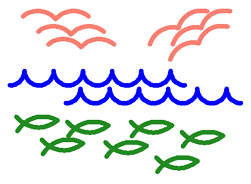
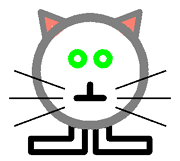
Here are a few things I've come up with.  A seascape made entirely using arcs, a custom wheel, and a kitty cat...

Figure 7.6


Summary

In this lesson, you've learned how to extend the utility of procedures.  You now know how to write procedures that can act differently; exactly what gets done depends upon the inputs ( parameters) that are provided on invocations.  This is good for two reasons:
  1. You can reduce the size of your programs.  The shorter your programs are, the easier they are to read and understand, the less chance they have mistakes in them, and the less you have to type.
  2. Your abstractions can be more powerful.  Without inputs, a procedure does the same thing every time it is invoked.  This is pretty limiting.  But, with inputs, your procedures are much more flexible.

Commanding Turtle

In this lesson, you will write your first computer programs using Logo.  After an introduction to the turtle and its environment, you will learn a few commands that the turtle understands.  Then it's up to you to instruct the turtle to draw a bunch of stuff.

An Overview of Logo and Turtle Graphics

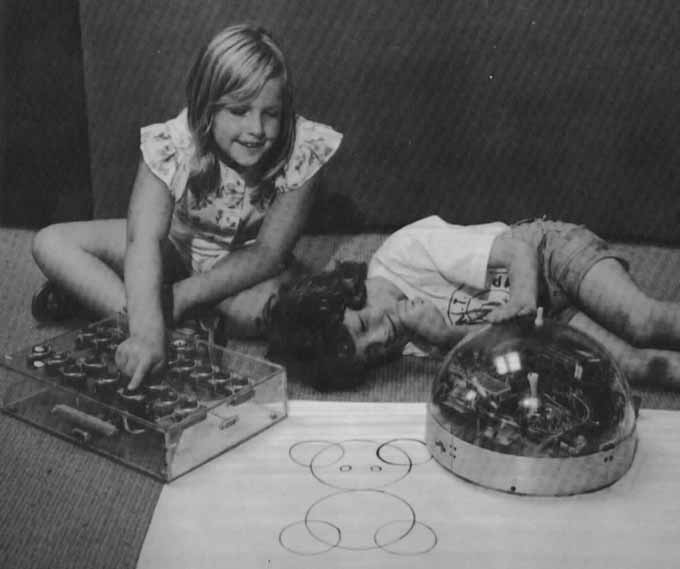
Logo and "turtle graphics" go back quite a long time (1967).  They come from BBN and MIT's Artificial Intelligence Laboratory and the team of Danny Bobrow, Wally Feurzeig, Seymour Papert, and Cynthia Solomon.  Let's read Seymour's own description of it:
   ... "the turtle."  You can think of this as a drawing
   instrument... Imagine that you are looking at a computer
   screen.  On it you see a small turtle, which moves when
   you type commands in a language called "turtle talk,"
   leaving a line as it goes.  The command "Forward 50"
   causes the turtle to move straight ahead a certain
   distance. "Forward 100" will make it move in the same
   direction twice as far.  You soon get the idea that the
   numbers represent the distance it moves; they can be
   thought of as turtle steps.  Now if you want to make it
   go in a different direction, you give it a command like
   "Right 90."  It stays in the same place but turns on
   itself, facing east if it had previously been facing
   north.  With this knowledge you should easily be able to
   make it draw a box.  If that's easy for you, you can
   think about how to draw a circle, and if that's easy you
   can try a spiral.  Somewhere you will meet your level of
   difficulty, and when you do I'll give you this piece of
   advice: Put yourself in the place of the turtle. Imagine
   yourself moving in the outline of a box or a circle or
   a spiral or whatever it may be.
			
Figure 2.1 shows the original turtle from "Mindstorms," Seymour Papert, Basic Books, Inc., 1980.

Turtle Picture Figure 2.1
Wikipedia has a great entry for Logo.

jLogo is a version of Logo that is written in the Java programming language.  It is sort-of a subset of Berkeley Logo extended to have some traits of Java.  Java is just not a good language to start out with.   By starting out with jLogo, you will get a good feel for what programming is all about.  With this experience, transitioning to Java will not be too hard if this is what you want.

The Graphics Canvas - TurtleSpace

You are going to be learning how to write computer programs which draw things on a digital canvas.  This makes a lot of sense because most things that you interact with that contain a computer have a display of some sort or another.  Think about it; desktop and notebook computers have flat-panel displays, mobile phones have small displays, tablets - check, new cars with a GPS, and now even the Nest Thermostat has a little display... They are everywhere these days.
You are going to be instructing an object, a turtle, to move around on a virtual canvas, drawing as it goes.  TG, the program you will use, has an area (a subwindow) called the graphics canvas.  Think of it as the world in which the turtle lives.
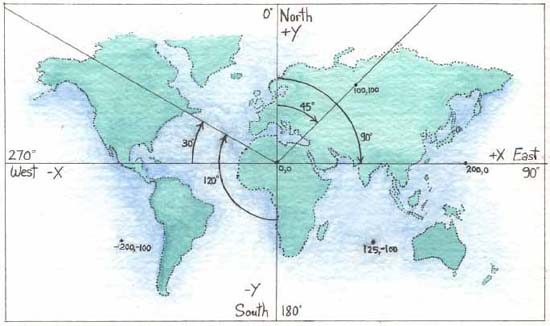
Here's what the turtle's world looks like.  The turtle starts out at the coordinates: 0,0 (the center of its world), heading North.  The turtle's world is a bit different from the Cartesian coordinate system that you may be familiar with (from your math classes).

TurtleWorld Figure 2.2
If you look closely, you'll notice that the origin for angle measurement is different.  In turtle graphics, 0 degrees is aligned with the positive Y axis instead of the positive X axis.  The other difference is that angle measurement in positive amounts measure clockwise rotation, the opposite direction that you've learned in math classes. 

Four Basic Commands

Table 2.1 shows a few Logo commands.

Command Inputs Description Example
FD
FORWARD
number Moves the turtle forward, in the direction it is facing, by the specified number of turtle steps. One turtle step is equal to one pixel. FD 100
BK
BACK
number Moves the turtle backward, i.e., exactly opposite to the direction that it's facing, by the specified number of turtle steps. One turtle step is equal to one pixel. BACK 150    
LT
LEFT
number Turns the turtle counterclockwise by the specified angle measured by a number of degrees (1/360 of a circle). LEFT 180
RT
RIGHT
number Turns the turtle clockwise by the specified angle, measured in degrees (1/360 of a circle). RT 90
Table 2.1
Notice that these commands must include a number, an input.  As an example, when you type in a forward command, you must specify some number of turtle steps.  This makes sense; if you didn't specify a distance, how would the turtle know when to stop?  If you forget to provide the number, you will be reminded, e.g., typing
   forward   
followed by the Enter key will result in a little pop-up box that contains:
Make sure to separate the command name and the input with at least one space.  Here's what you will see if you type
   right90   
followed by the Enter key.
Ok, enough of an introduction; it is time for you to try stuff out for yourself.
I've written a computer program that has been embedded in these web pages (it's a Java applet) which understands the Logo language.  I've named it TG, an acronym for Turtle Graphics.
If TG is behaving as it should, you will see two white areas divided horizontally by a gray namestripe with "CommandCenter" and "t1" in it.  This namestripe can be dragged up and down by positioning the mouse on it, holding the left button down, and moving the mouse up/down.  Move the namestripe if necessary so that there is approximately equal space above and below it.
The turtle (the hexagon with head, legs and a tail) is in the middle of the graphics canvas.  It is heading north.  It has its black pen down, ready to draw a line as it moves.  Click the left mouse button in the CommandCenter - an interaction area below the graphics canvas.  The namestripe will turn black and a cursor (small, thick, black vertical bar) to the right of a "? " prompt will start to blink indicating it is ready for you to type in instructions.
alt="Your browser understands the <APPLET> tag but isn't running the applet, for some reason." Your browser is completely ignoring the <APPLET> tag! TG Programming Environment Applet
To get started, try typing the following instructions which will draw a box:
   forward 100
   right 90
   forward 100 right 90
   fd 100 rt 90 fd 100 rt 90   
If this applet is broken and you are using Chrome, click here.

Exploration: Additional Commands

Table 2.2 shows a few more Logo commands.

Command Inputs Description
HOME   Moves the turtle to the center of the graphics canvas, i.e., coordinates 0,0.
PENUP
PU
  Lifts the turtle's pen up so that it leaves no trace when the turtle moves.
PENDOWN
PD
  Puts the turtle's pen down so that it leaves a trace when the turtle moves.
CG
CLEAN
  Erases (cleans) everything that the turtle has drawn on the graphics area (ClearGraphics). The turtle's state (position, heading, pen color, etc.) is not changed.
PLAYCLIP clipNumber A WAV (waveform) audio clip is played.
Number
Audio Clip
Number
Audio Clip
1 Cat Meow 5 Horse
2 Computer Beeps 6 Laser
3 Dog Bark 7 Pop
4 Fairy Dust 8 Zoop
SETBACKGROUND
SETBG
number Sets the color of the background of the graphics canvas.  Color is expressed as a number.
Number
Color
Number
Color
Number
Color
Number
Color
0
black
8
brown
16
navy
24
peru
1
blue
9
tan
17
skyblue
25
wheat
2
green
10
forest
18
lime
26
palegreen
3
cyan
11
aqua
19
steelblue
27
lightblue
4
red
12
salmon
20
chocolate
28
khaki
5
magenta
13
violet
21
purple
29
pink
6
yellow
14
orange
22
gold
30
lawngreen
7
white
15
grey
23
lightgrey
31
olive
SETC
SETPC
SETPENCOLOR
number Sets the turtle's pen color. Color is expressed as a number as with SETBACKGROUND.
SETPENSIZE
SETPS
number Sets the width of the turtle's pen, which determines the thickness (in pixels) of the trace it leaves, the line it draws.
SETSHAPE
SETSH
number Sets the turtle's image to a specified shape.  Shape is expressed as a number.  The built-in shapes are:
Number
Shape
Number
Shape
0
Turtle
4
Cross
1
Arrow
5
Triangle
2
Ball
6
Diamond
3
Box    
HT
HIDETURTLE
  Hides the turtle, makes it invisible.
ST
SHOWTURTLE
  Makes the turtle visible.
Table 2.2
Play around with all these commands.  You've seen how easy it is to draw a box; draw some additional boxes that are different colors, that are drawn with different sized pens.  Explore...

Practice: Draw Some Figures


"One must learn by doing the thing; for though you think you know it, you have no certainty, until you try." - Sophocles
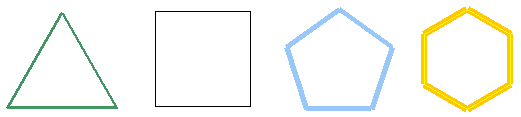
Instruct the turtle to draw a triangle, a square, a pentagon, a hexagon, ...  Again, vary the colors, use different sized pens, and place them at different places in TurtleSpace.

Figure 2.3

Help at Your Fingertips

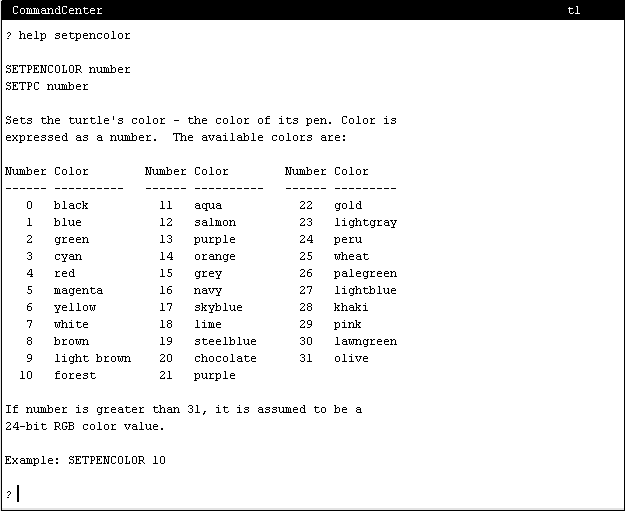
In addition to giving the turtle commands, the CommandCenter can be used to get help when you need it.  Type "help setpencolor" in the CommandCenter and press Enter.  Figure 2.4 shows what happens.

SetPenColorHelp Figure 2.4
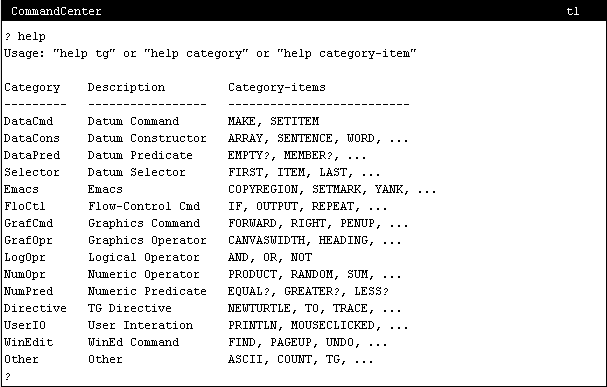
For more information about what you can get help with, type help and press Enter.  Figure 2.5 shows what happens.

Help Figure 2.5
Explore what you can do with the help command.  help tg will get you an overview of the TG programming environment.  All of the commands that were covered in this lesson are from the GrafCmd category.  You will get the full listing of commands that fall into this category by typing help grafcmd and pressing Enter. 

Running TG as an Application

The nice feature of Java applets is that they are part of web pages.  Once you have the browser on the page containing the applet, you have access to the applet.  But, an important security feature of a Java applet is that it can't do anything to the computer on which it's running.  To insure this, applets have no access to stuff on the computer they are executed on. 
But, as our programs get bigger and more complicated, it is necessary for TG (the turtle graphics program) to be able to read a file containing commands and execute them as it reads the file.  You need to be able to change the instructions and/or add instructions to the program, and then save what you've done to a file.
Java applications can provide this functionality.
The TG Java applet you've been using can also run on your computer in application mode.  It does everything that the applet does and more.  But, for you to run it on your computer, you need to have a copy of it (TG.jar).  Appendix H (Installation of TG) covers how to get it and run it. 

Summary

   
   Writing software, computer programs, is a lot
   like writing down the steps to do something.
   
			
You've learned some of the the jLogo language.  If you got the turtle to draw a triangle, a box, etc..., for you, you got experience instructing it to do things in a specific order.  And, the order is very important.  In programming we refer to this order of steps as a sequence.  In our programs, we moved the turtle and then turned it, moved it, then turned it, told it to raise its pen, moved it,...  If you put all of the movement commands first followed by all the turn commands, you would not get what you want - you would get a straight line.  So, writing a program is all about putting together instructions in a specific order.